

Creating a Test Strategy
Start a new strategy
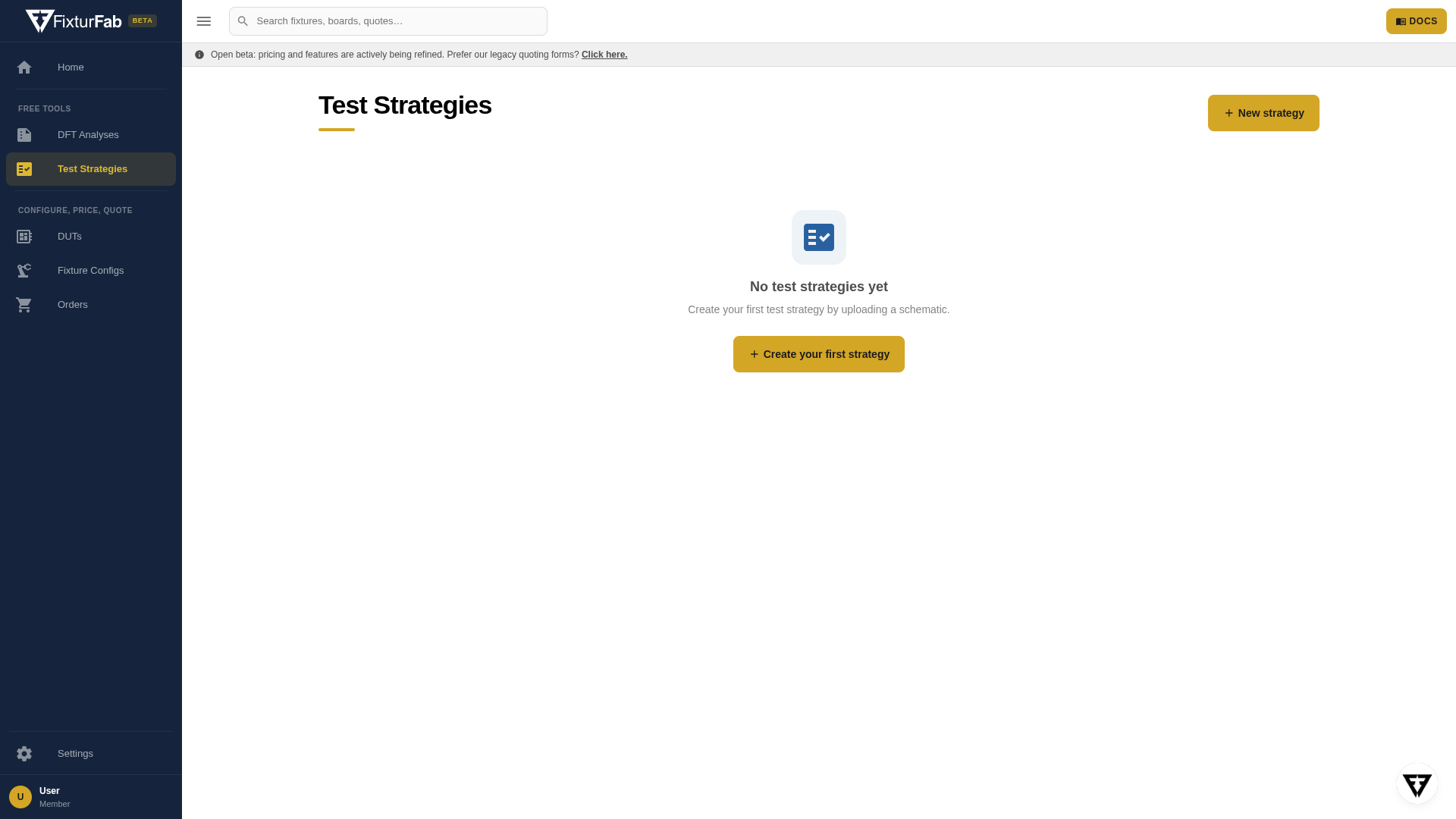
Open Test Strategies in the sidebar and click New strategy — or click Run now on the Test Strategy card on the Studio home page.
Upload your schematic
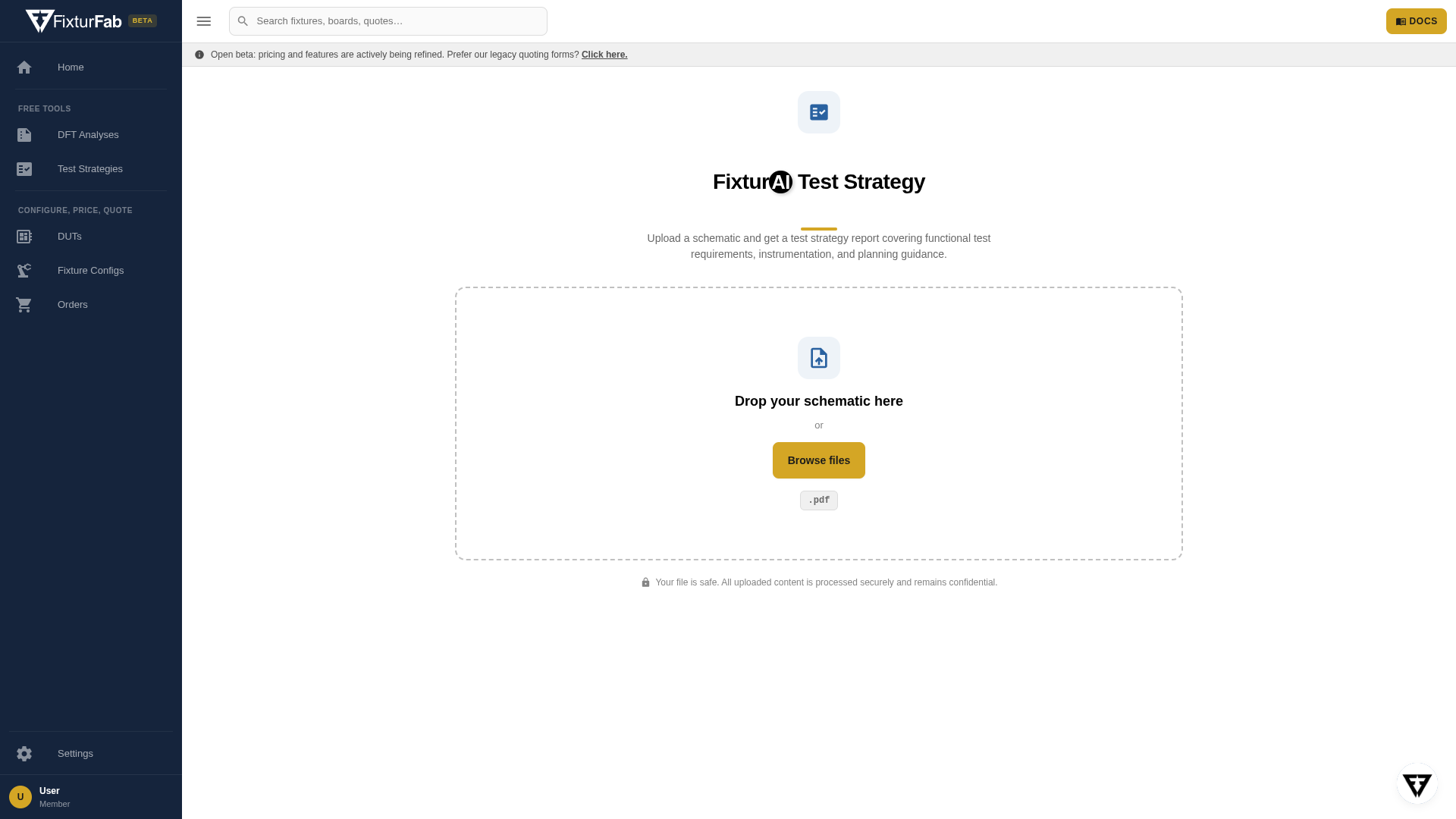
Drop a PDF of your schematic onto the upload card, or click Browse files. PDF is the accepted format — export it from your EDA tool (most tools have a "plot" or "print to PDF" option that includes every sheet).
A multi-sheet schematic is fine — the analysis reads all pages. The more complete the schematic (reference designators, net labels, connector pinouts), the better the report.
Processing
The analysis runs in six visible steps:
- Creating test strategy — the report record is created
- Loading schematic — your PDF is uploaded to secure storage
- Analyzing DUT — FixturAI reads the schematic and writes the DUT overview
- Identifying functional test areas — the testable blocks in your design
- Creating example test procedure — a worked test sequence
- Creating sample equipment list — the instrumentation the procedure calls for
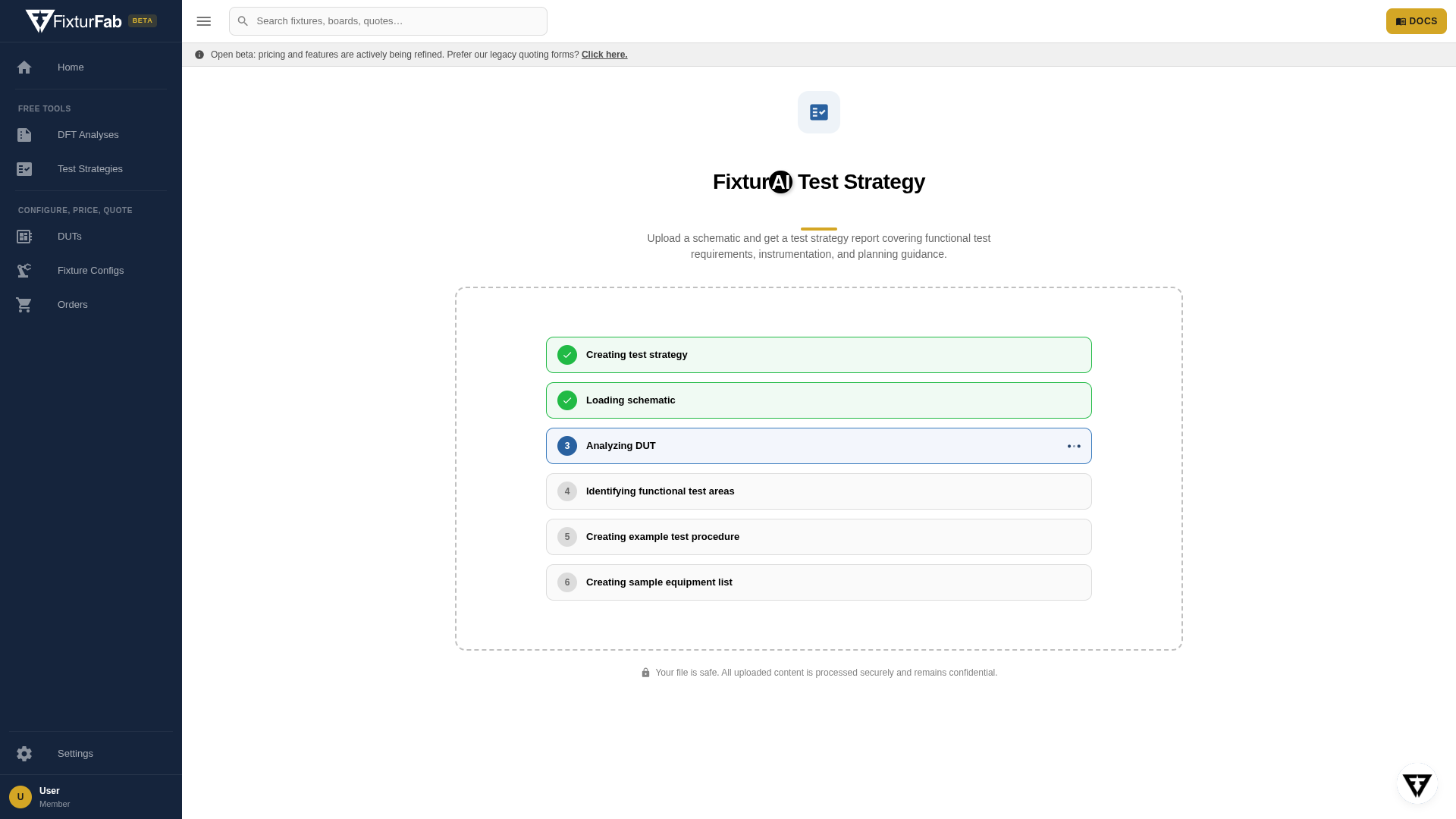
The analysis does a full read of every schematic page and generates each section in sequence, so expect a typical multi-sheet design to take 10–20 minutes end to end — the test procedure is usually the longest step. Leave the tab open; you'll be taken to the report when it finishes. If a step fails, a retry button appears on that step — the completed steps don't re-run.
When the last step finishes, you're taken straight to the report. See Reading the Report for what's in it and what to do next.