

Test Configs
A test config defines what a fixture needs to do for your board: which test points to probe, how the board is located, where pressure is applied, and which board features the fixture must interact with. Studio analyzes your design files and identifies what a fixture can cover — your job is to confirm and refine.
Test configs belong to a DUT. Each DUT can have one or many, so you can explore different testing approaches for the same board, and each test config can be saved as versions as it evolves.
To create one, open your DUT and click Create Test Configuration.
The workspace
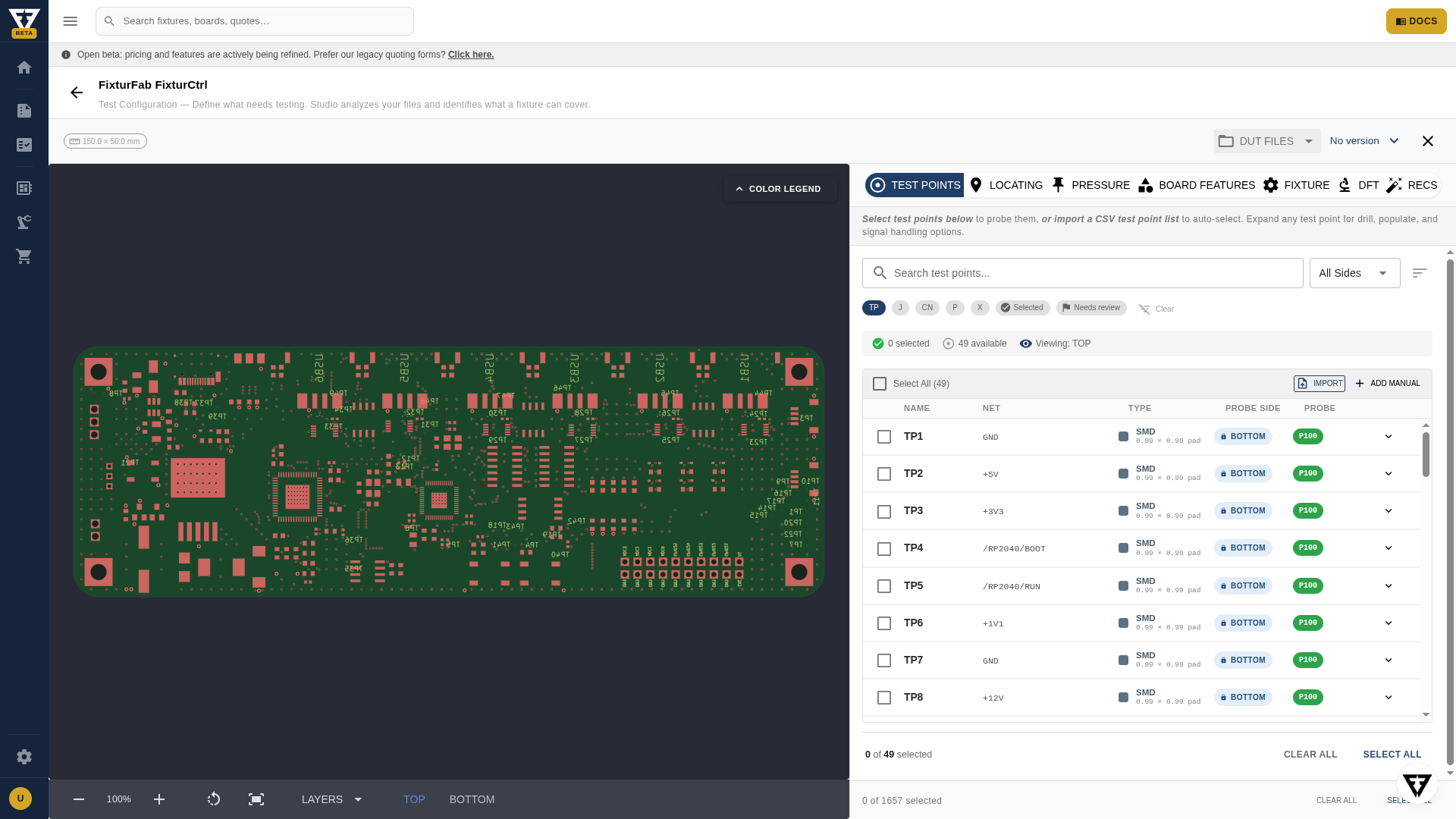
The test config workspace pairs an interactive board view (left) with a tabbed configuration panel (right). Selections highlight live on the board, and the TOP/BOTTOM toggle and layer controls let you inspect either side.
Work through the tabs left to right:
Test Points
Select which test points to probe. The table lists every test point parsed from your design with its net, type, and probe sizing; selected points highlight on the board. You can select all, filter and search, mark high-power signals, and flag points where holes should be drilled but probes left unpopulated. If your design package didn't carry test point data, you can import a CSV test point list here.
Locating
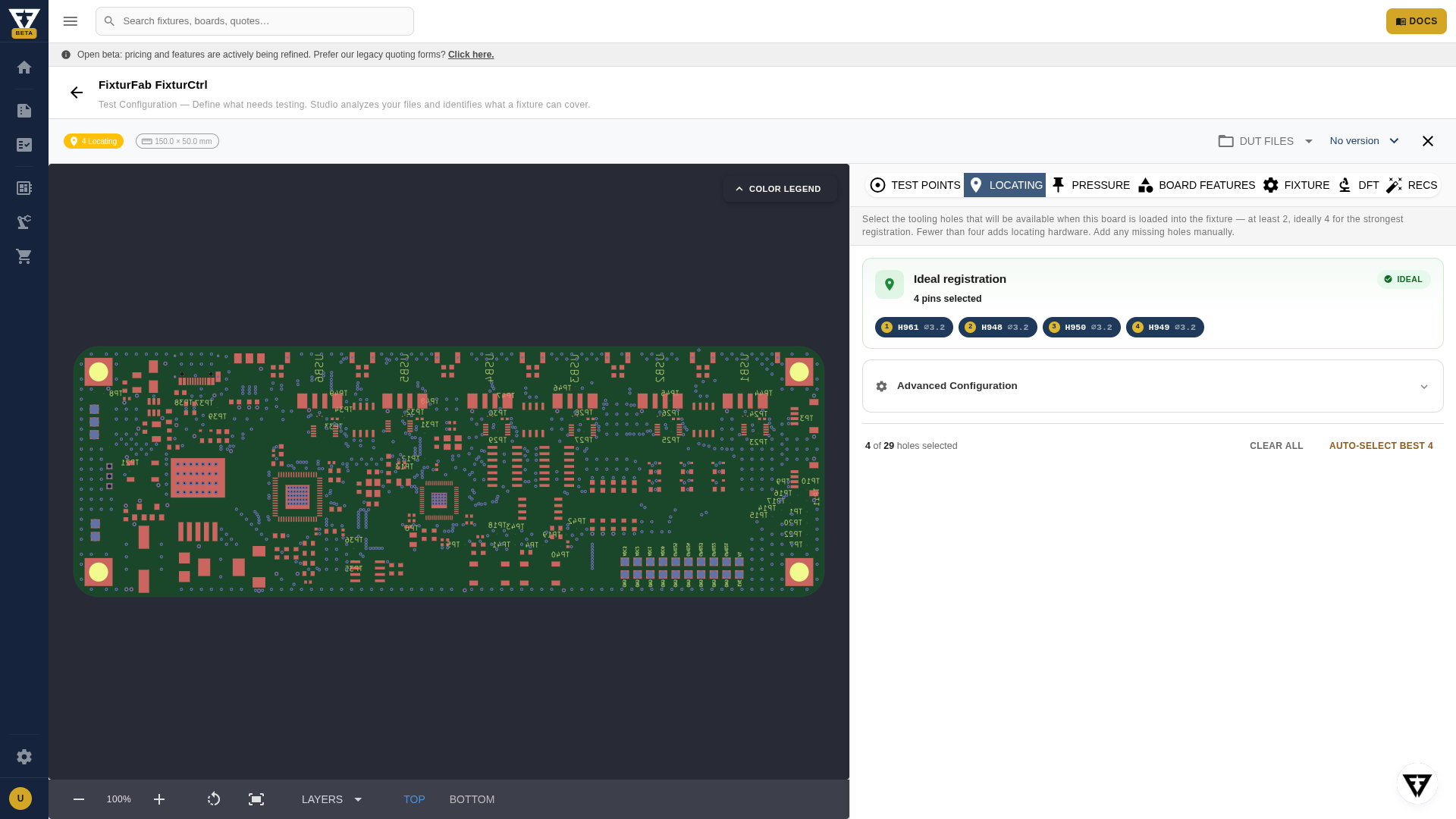
Indicate which tooling or mounting holes locate the board in the fixture. Studio scores the registration quality of your selection — Auto-select best picks the ideal set for you.
Pressure
Confirm the accuracy of component placement from your STEP model — this drives how hold-down pressure is distributed across the board during testing.
Board Features
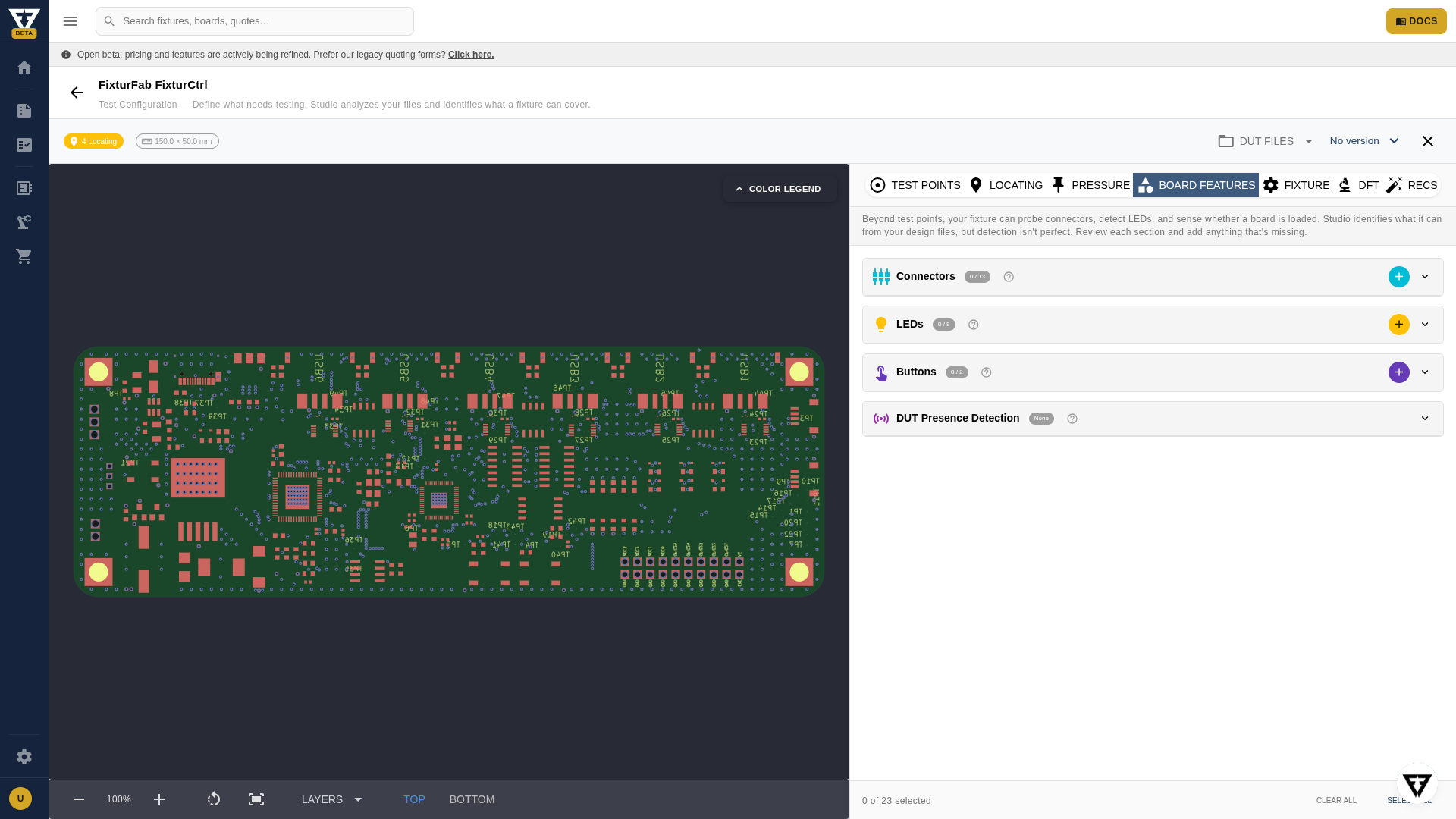
Identify the connectors, LEDs, and buttons the fixture must account for, and whether you need DUT presence detection.
Fixture
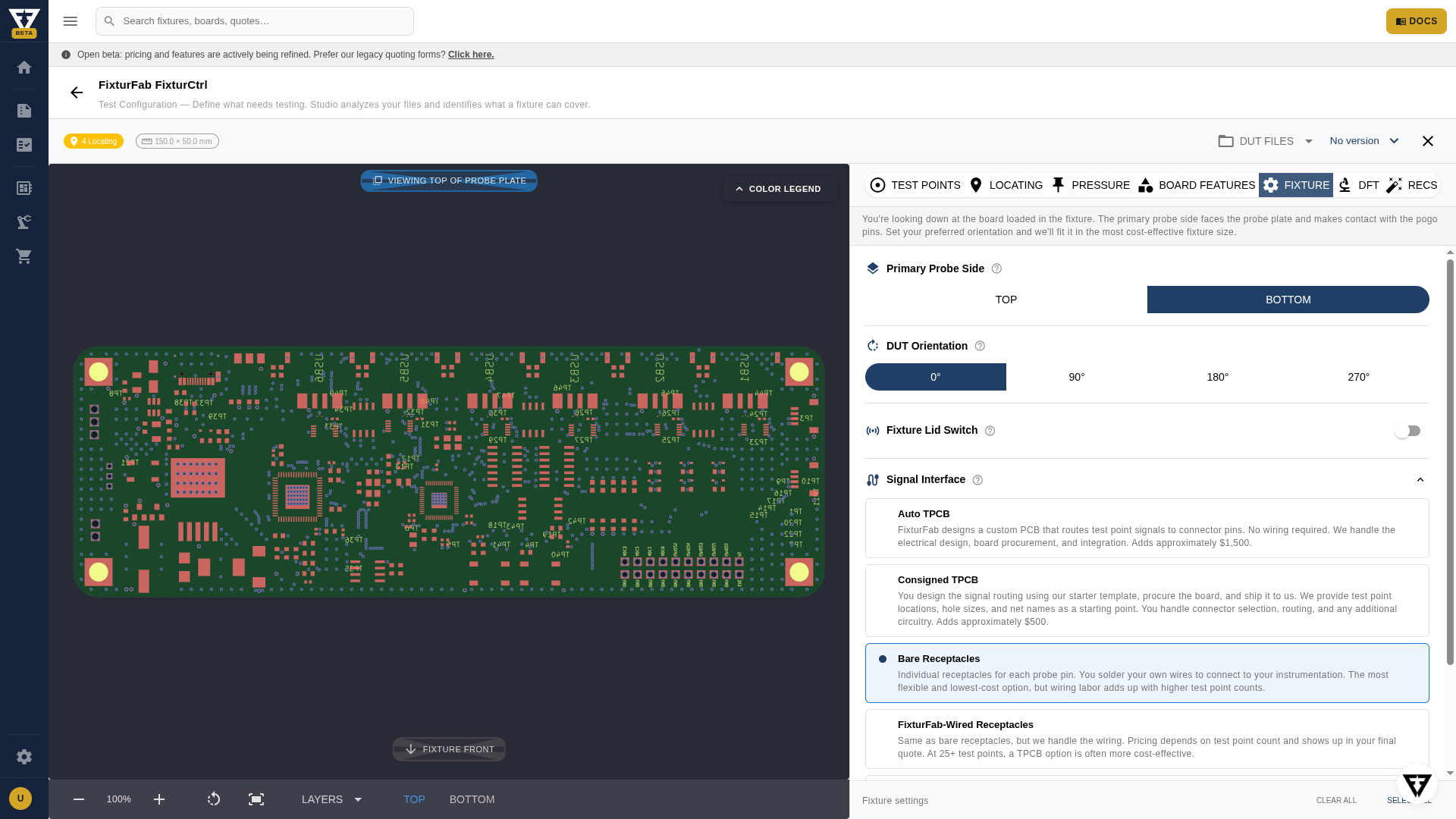
Set the primary probe side, DUT orientation, and lid switch preference, and choose a signal interface — how test signals route from the fixture to your instrumentation (Auto TPCB, Consigned TPCB, bare receptacles, or FixturFab-wired receptacles; see the TPCB variants in the terminology guide).
DFT and Recs
The last two tabs unlock once a signal interface is selected. DFT validates your configuration against manufacturability constraints — the same design-for-test checks documented in the design rules. Recs presents recommended fixture configurations generated from your inputs, which you can click through to start configuring and pricing a fixture.
TIP
Every tab explains why its inputs matter, with tooltips and expandable detail. If you know exactly what you want, make your selections and move on — the guidance stays out of the way.