Deploying to a Device
With your fleet created and your project repository set up, you can provision a device with balenaOS, add it to your fleet, and deploy the Test Runner with balena push.
Provision the Device with balenaOS
Provisioning installs balenaOS on the test fixture's hardware and joins it to your fleet.
- Open your fleet in the balenaCloud dashboard and click Add device.
- Select the device type that matches your hardware, choose the balenaOS version, and pick Development or Production. Use a development image while bringing up a new fixture, and a production image for deployed units.
- Configure the network settings (Ethernet or Wi-Fi credentials) and download the balenaOS image.
- Flash the downloaded image to the device's boot media (SD card, USB drive, or internal storage) using balenaEtcher.
- Insert the media and power on the device. It will provision itself and appear as online under Devices in your fleet.
The exact steps differ by hardware, so follow the Balena Getting Started guide for your specific device architecture (for example, Raspberry Pi 3 or Intel NUC).
Deploy the Application with balena push
Once a device is online in the fleet, deploy the Test Runner by pushing the project. Run these commands from the root of your project directory, where the docker-compose.yml lives:
# Authenticate (once per machine)
balena login

# Build and deploy the current project to the fleet
balena push <fleet-name>
This builds your project on the balenaCloud build servers and creates a new release. Every device in the fleet is then notified of the release and downloads and runs it according to the fleet's update strategy.
Configure Device Variables
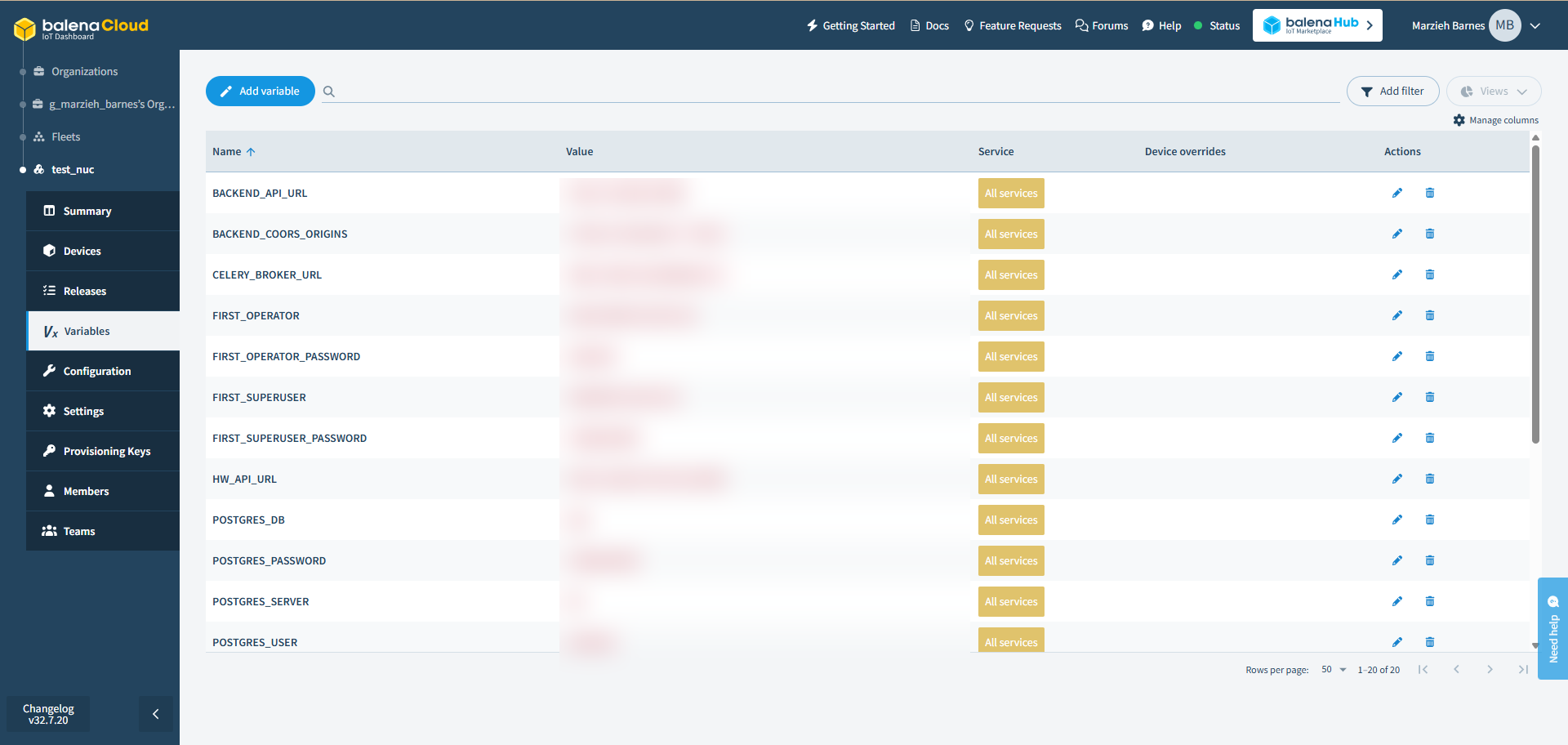
The Test Runner services require a set of variables to be configured on the fleet before they will start correctly. Add them from the Variables tab of your fleet:
- Open your fleet in the balenaCloud dashboard and select the Variables tab.
- Click Add variable, enter the variable name and value, and leave the service set to All services.
- Repeat for each required variable.
See Device Variables for the full list of variables and their descriptions. Once the variables are set and a release is running, the device will start the Test Runner.
Once configured, the fleet Variables tab should list all of the variables applied to All services.