

Accessing the Test Runner GUI
Once the Test Runner is deployed and running on a device, its GUI (the web frontend) can be accessed in two ways.
Method 1: Local Desktop Mode
Connect a display, along with a keyboard and mouse, directly to the device. The browser container automatically launches in kiosk mode and connects to the Test Runner frontend running locally on the device, displaying the GUI on the attached screen.
This method works fully offline — it does not require an internet connection or a connection to balenaCloud — and is the recommended method for production fixtures on the factory floor.
Method 2: Public Device URL
The balenaCloud dashboard can expose the device's web frontend over the internet through a public URL. This is useful for accessing the GUI remotely, for example during bring-up or debugging.
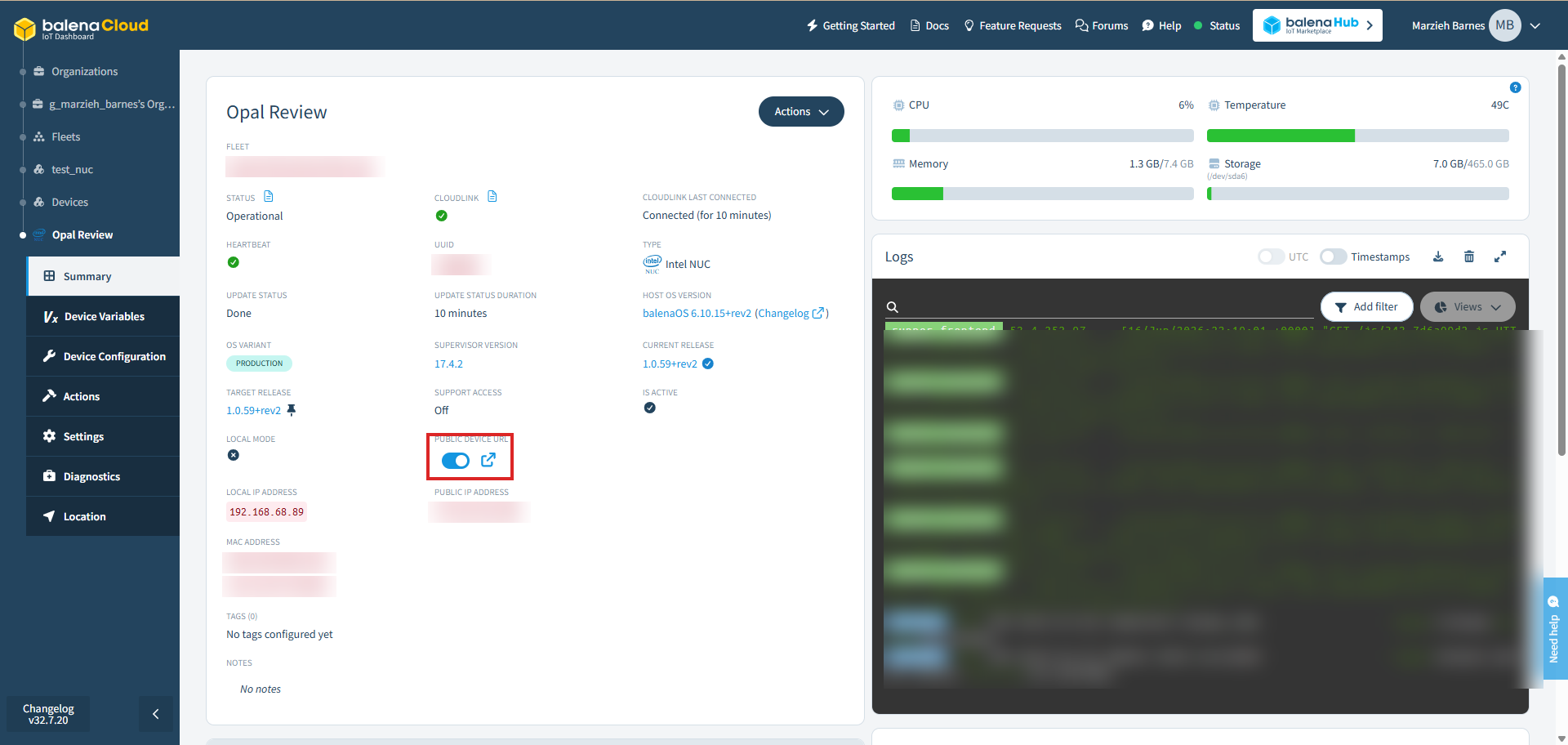
- Open the device's Summary page in the balenaCloud dashboard.
- Enable the Public Device URL toggle.
- Click the link icon next to the toggle to open the Test Runner GUI in your browser.
This method requires the device to be online and connected to balenaCloud. Because the URL is publicly accessible to anyone who has it, prefer Local Desktop Mode for production deployments and disable the public URL when it is no longer needed.
Disclaimer: Running multiple instances of the Test Runner webpage at the same time — whether through both the local desktop and the public URL, or in multiple browser tabs — is not fully supported and can cause issues with the runner. Use a single active instance at a time.
Using the Test Runner
Once you have access to the GUI, see the Users Guide for instructions on logging in, running tests, and viewing results.