

Connecting over SSH
You can connect to a deployed device over SSH and work with it directly from VSCode using the Remote - SSH extension. This is useful for debugging test plans and inspecting the running Test Runner on the device.
Connecting over SSH places you inside the worker container, where the Test Runner executes test plans. Test plans must be located in the test plan directory set by the TEST_PLAN_DIR device variable (/data/test_plans).
Prerequisites
- Install the Remote - SSH extension in VSCode.
- The device must be running with
START_SSHDenabled (see Device Variables).
Method 1: Local Network
Use this method when your computer is on the same local network as the device.
Open the device's Summary page in the balenaCloud dashboard and note the Local IP Address (for example,
192.168.68.89).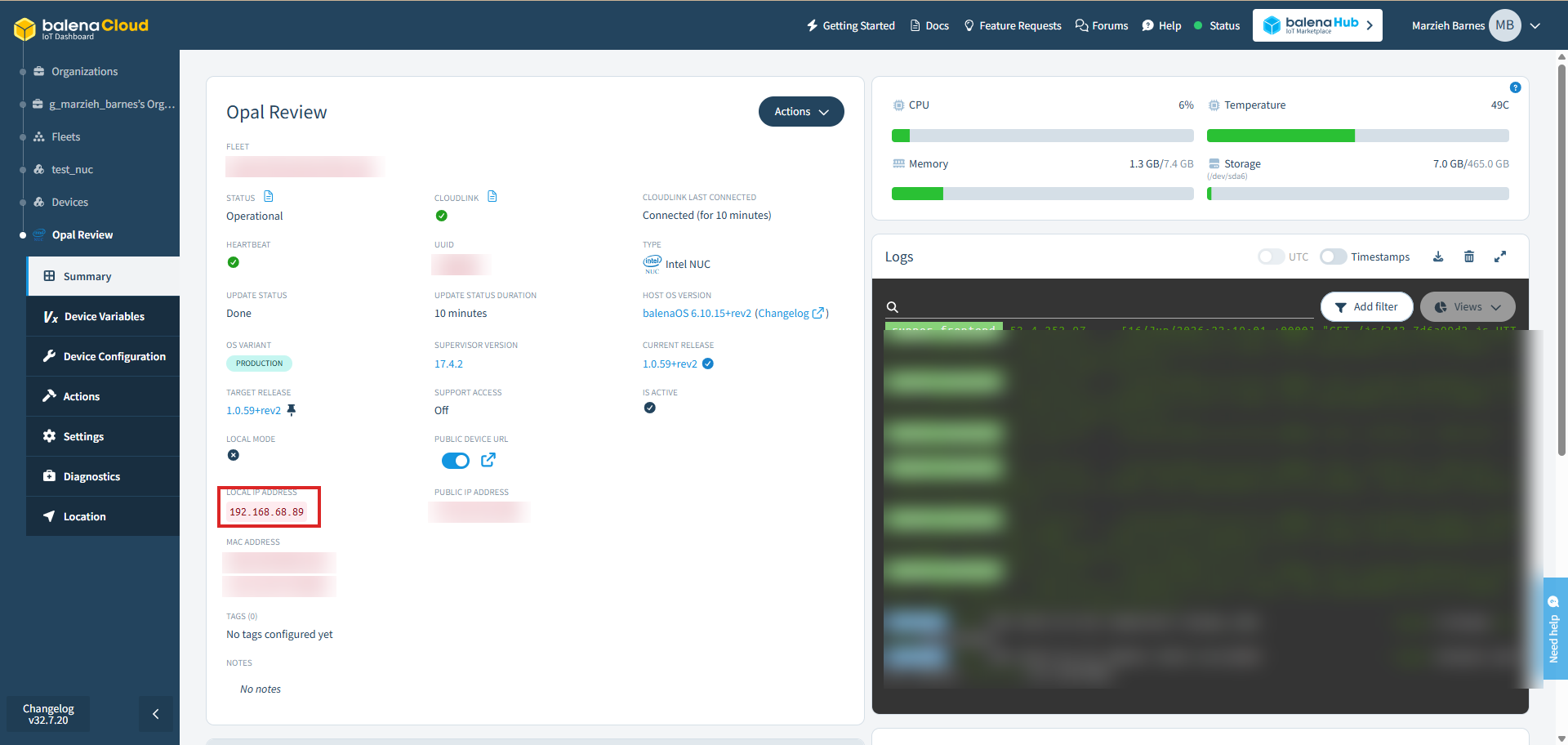
In VSCode, open the Command Palette (
Ctrl/Cmd+Shift+P) and run Remote-SSH: Connect to Host…, then Add New SSH Host….Enter the SSH command, connecting as
rooton port22:bashssh root@<local-ip> -p 22Select an SSH config file to save the host to, then select the new host to connect.
When prompted for a password, enter
balena.
VSCode will open a new window connected to the device, where you can browse the filesystem and open a remote terminal.
Method 2: Remote via balena tunnel
Use this method when your computer is not on the same network as the device. External firewalls and NAT routers usually block direct access, so the balena CLI is used to tunnel the device's SSH port to your local machine, which Remote - SSH can then connect to. See the Balena SSH Access guide for more detail.
Find the device's UUID on its Summary page.
Tunnel the device's SSH port (
22) to a local port (for example,2222):bashbalena device tunnel <device-uuid> -p 22:2222Leave the tunnel running. In a VSCode window, run Remote-SSH: Connect to Host… → Add New SSH Host… and connect through the tunnel:
bashssh root@127.0.0.1 -p 2222When prompted for a password, enter
balena.